
OBS overlays that your chat fills by itself
Every Vidari overlay is its own browser source with its own address. You drop it into OBS, Streamlabs or Vidari Studio – and it reacts to follows, subs, raids, donations and chat commands.
Last reviewed:
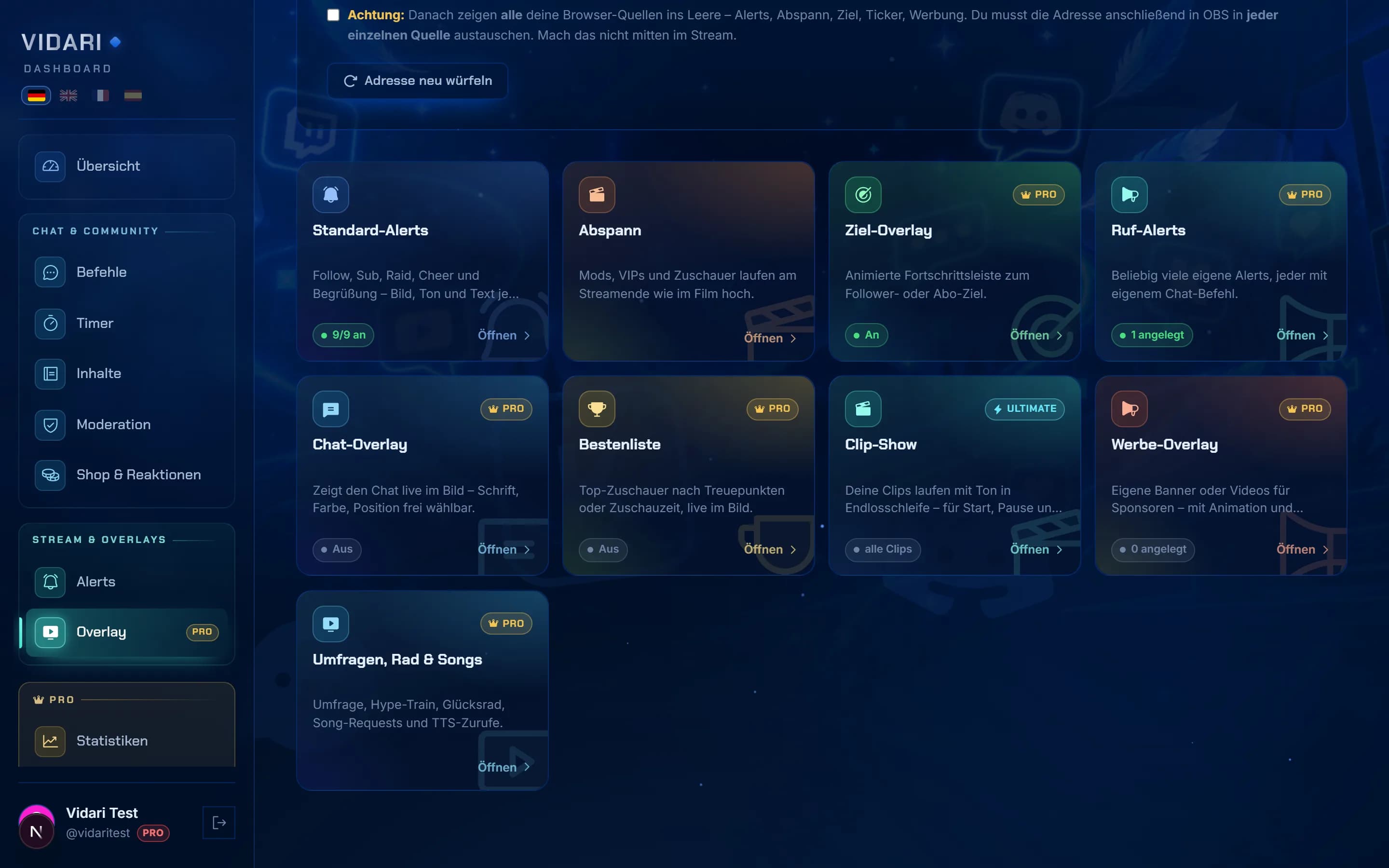
Alerts for follows, subs, raids and donations
The alert overlay shows follows, subs, gift subs, bits, raids and donations on screen – with your own image or GIF, your own sound, free positioning and its own fade-in and fade-out time. On a raid it can play a random clip of the other streamer. The alert overlay is included in Vidari Free.
- Variants by amount: 100 bits get a small alert, 10,000 bits the full-screen moment with its own sound (Vidari Pro).
- Call alerts: as many custom alerts as you like, each with its own chat command – for channel points, for example (Vidari Pro).
- “Again!”: one button replays the last alert without counting anything twice (Vidari Pro).
Donation goals and stream goals with milestones
The goal overlay shows a progress bar for followers, subs, bits or donations – several goals stacked or rotating, too. Each goal can have up to six milestones (“at €50 a horror game, at €100 I dye my hair”), and each milestone can trigger its own action when reached: call alert, scene, prize wheel, ad or credits. The goal overlay belongs to Vidari Pro.
Chat, polls and prize wheel on screen
Chat overlayPro
Your chat live on stream – font, colour, size, outline and animation of your choice, emotes from Twitch, 7TV and BTTV as images.
Polls, hype train, prize wheelPro
Twitch polls and predictions, the hype train and the prize wheel (!wheel) as animated sources.
LeaderboardPro
Your top viewers by loyalty points or watch time.
Counter boardPro
Counters from chat (“Deaths: 14”), kept up to date with !deaths +1.
Chat statsPro
What many people are writing right now, who is most active and how fast chat is moving.
Song requestsPro
Viewers request YouTube songs with !sr, and the now-playing overlay shows what is on.
Subathon timer and stream labels
The subathon timer extends your stream with every sub, gift and bits donation. You decide how much time each one adds, set a cap and pause the timer with !subathon pause; during happy hour everything counts double, triple or five times.
Stream labels show the latest follower, latest sub, latest raid or top donor of the month as a standing line on screen. The subathon timer and stream labels belong to Vidari Pro.
Stream credits and clip show
The stream credits roll raids, moderators, VIPs and every viewer like at the cinema, triggered with !credits; they are included in Vidari Free. The clip show plays your own clips on a loop with sound – for your starting, break and ending scenes – and belongs to Vidari Ultimate.
Adding an overlay to OBS
Open the overlay in the dashboard
Under “Overlay”, pick the module, set its look and behaviour, and copy the browser source address.
Create a browser source in OBS
Add a new “Browser” source in OBS, paste the address and enter your canvas width and height – usually 1920 × 1080.
Try it out
Trigger something the overlay reacts to – such as !credits for the credits – or wait for the next follow. If it shows up in OBS, the source is set. In Vidari Studio you skip this: there you pick the overlay from a list.
Frequently asked questions
Which Vidari overlays are free?
Vidari Free includes the alert overlay (follows, subs, raids, donations, greeting) and the stream credits. Goal, chat, leaderboard and ad overlays, subathon timer, stream labels, counter board, polls, prize wheel and song requests belong to Vidari Pro for €0.00 a month; the clip show belongs to Vidari Ultimate.
Do the overlays work in Streamlabs or Vidari Studio too?
Yes. Every Vidari overlay is an ordinary browser source and runs anywhere a web page can be added as a source – in OBS, Streamlabs, Vidari Studio and in Vidari Cloud scenes.
Does an overlay need my stream key or an installation?
No. An overlay is just an address you add as a browser source. There is nothing to download, and Vidari does not get access to your stream key for it.
Keep reading
Set up overlays for your stream
The alert overlay is free. Sign in, copy the address, paste it into OBS.
Start for free